Free and open source · Fedora · Debian · Ubuntu · Arch
WhatsApp for Linux
A real desktop app for the WhatsApp you already use. It sits in the tray and
tells you the moment a message lands, takes voice and video calls, shares your
screen, and draws your chats in the font and the size you want to read them at.
Same account, same chats, same phone — nothing to set up but the QR scan.
Updates with your system, through dnf, apt or pacman.
What you get
WhatsApp, behaving like an app your desktop actually knows about.
A notification for every message
Not one per chat — one per message, with who wrote it, their picture and what
they said. Click it and that conversation opens. Read it on your phone and it
disappears here on its own. A photo says 📷 Photo and a voice note
says how long it is.
Voice and video calls
Ring somebody, or pick up, from your computer — camera and microphone just
work, and there is nothing to allow first. Share your whole screen or a single
window while you talk. Every call opens in a window of its own.
A font for each alphabet
Not one font for everything: a family, a size and a weight for Latin, and
another set for Arabic, each with its own switch. So you can give Arabic the face
it deserves without touching your English, or the other way round. Left alone, it
draws everything in your desktop's own font and follows it when you change it.
Arabic that reads like Arabic
Every line takes its direction from its own first word, so Arabic sits against
the right and English against the left — in the same message, in a group, and in
the replies under a community post. Letters get the room their descenders need,
the timestamp stays off the last line, and the notifications read the same way.
Nothing to switch on.
Lives in the tray
Close the window and it keeps running, so nothing is missed while it is out of
the way. It can start with your session, already hidden, and the tray icon tells
you when somebody is waiting.
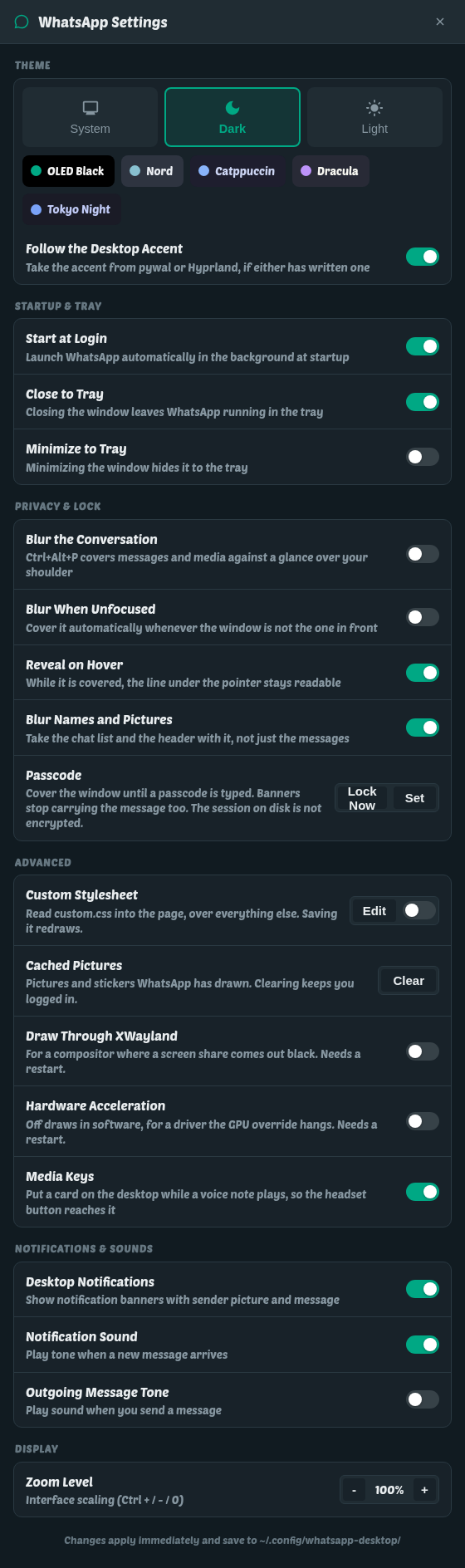
Dark, light, or whatever the desktop is
One Settings window — Ctrl+, or the tray menu — with the
theme, the zoom, start-at-login, what closing the window does, and which sounds
you want; the fonts have a window of their own beside it. No text editor
anywhere.
Smoother than the browser
Long conversations scroll on the graphics card, a wheel notch glides instead
of jumping, and the panel beside a chat slides in and out. Reply to a message and
the bar and the conversation above it move as one piece, rather than the bar
growing and the messages catching up a frame later. Jump to a message — the
pinned one at the top of a chat, a quoted reply, a search result — and you
land on it and stay there, instead of sliding a screenful past it.
Nothing to turn on — it is how it draws.
It says when there is a newer one
It asks GitHub once a day whether a release is out, and when there is one the
tray menu names it. It never installs anything itself — your own package manager
does that, on your say-so, with the rest of your system.
Your account is untouched
Inside the window is WhatsApp's own web app, the one you would open in a
browser. Nothing is re-implemented, nothing is stored, and no server but
WhatsApp's ever sees a message — it is linked from your phone exactly like a
browser, and unlinked the same way.
Everything is a switch
One window — Ctrl+, or the tray menu — and every one of
these takes effect the moment you set it. Nothing to restart, nothing to save.
Theme
System, dark or light. System turns when your desktop turns.
Start at Login
Starts hidden in the tray, so messages arrive before you open anything.
Close to Tray
Closing the window keeps the client running and connected.
Minimize to Tray
Minimising hides it away as well. Off by default — minimising is not
closing.
Remember Window Size
Opens the way it was left: maximised, or at its own size — even when the
machine went down with it open. Off for a tiling window manager, which picks the
size itself, or a config kept in git.
Desktop Notifications
One banner per message, with the sender's picture and what they said.
Notification Sound
Your desktop's own tone when a message lands — the one the rest of your
machine uses.
Outgoing Message Tone
The sound for a message you send. Off by default: it is already on
screen with a tick under it.
Zoom Level
Scales the whole interface, pictures and spacing and all — the same as
Ctrl++ / - / 0.
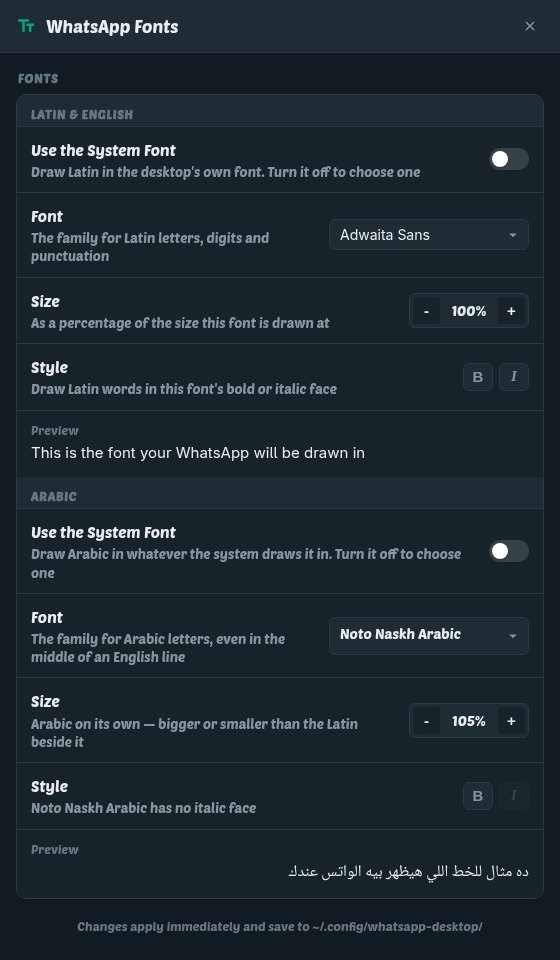
A font for English, and a different one for Arabic
Most apps give you one font for everything, which means picking the one that
is least wrong for both alphabets. This one has a window — the tray's
Fonts… — with the two scripts side by side and a switch on each, so an
Arabic face of your own does not oblige you to choose a Latin one, or the other
way round.
Two switches, not one
Leave either script on your desktop's own font and set only the other.
Family
Picked from the fonts actually installed on your machine — the Arabic list
holds only the ones that can draw Arabic, so nothing on it comes out in boxes.
Size, per script
Arabic sits smaller than Latin at the same nominal size in almost every
pairing. Nudge one up and it matches the other, in the same line, without
moving the Latin.
Bold and italic
The family's real bold or italic face — never a slanted or smeared
imitation. A family that has none says so instead of offering a button that
does nothing.
A preview of each
A line in Latin and a line in Arabic, drawn in what you just picked.
It costs nothing to draw: the two scripts are two faces of one
family split by character range, resolved by the font engine, rather than a
style rule the page has to match against every element while you scroll.
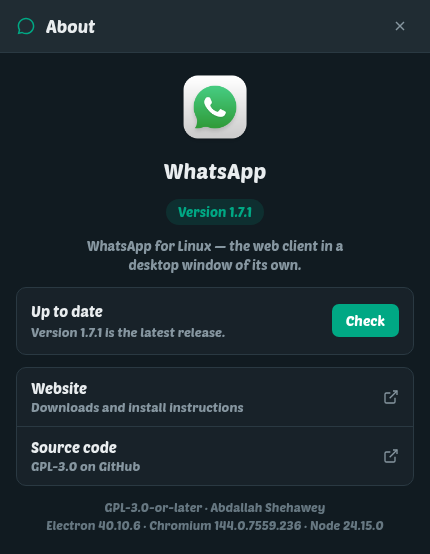
It tells you when there is a newer one
About WhatsApp, in the tray menu, has the version you are running and
a Check that asks GitHub for the latest release. It also looks once a
day on its own, and when there is something newer the tray item says so by
name — so you find out from the app rather than from somebody else's screenshot.
It never installs anything. Your package manager does that, and
the command for your distribution is a few lines down this
page. If you would rather it did not look at all, one switch in the
configuration file stops the daily check and leaves the
button.
Install
Pick your distribution and copy the commands — everything you need
is on this page. The packages are signed and come from a repository, so your usual
system update keeps WhatsApp up to date with everything else — and
Update has the commands for doing it on its own.
1 · Add the signed repository
curl -fsSL https://abdallah-shehawey.github.io/shinux-repo/install.sh | sudo sh
One script for all three package managers: it detects
dnf, apt or pacman, imports the signing key,
writes a single repository file under /etc, and stops there. It
installs no packages of its own. If you would rather not pipe into a shell, the
three tabs beside this one spell the same steps out by hand.
The repository is brand new to your machine, so each of these
fetches its list of packages first — that is what --refresh,
apt update and the y in pacman -Syu do.
Without it the package manager reads a list written before the repository existed
and answers "no match".
Ubuntu 24.04 and later, Debian 12 and later, Mint 22 and later.
Older releases are missing system libraries the app needs and will refuse to
install rather than break.
sudo tee -a /etc/pacman.conf >/dev/null <<'EOF'

[shinux]
Server = https://abdallah-shehawey.github.io/shinux-repo/arch
SigLevel = Required DatabaseOptional
EOF
3 · Install
sudo pacman -Syu whatsapp-desktop
A native .pkg.tar.zst from a signed repository — not an
AUR recipe, so there is nothing to compile. The y refreshes the package
list first, and the u is how Arch is meant to be installed into: pulling
one package into an out-of-date system is what breaks it. Manjaro and EndeavourOS
take the same steps.
The leading ./ matters: without it both
dnf and apt look for a package by that name in a
repository instead of reading the file. Grab the file from
the downloads below.
This does not update itself. A file install stays
at the version you fetched — the repository above is the only reason to prefer it.
First run. Launch WhatsApp from your applications menu
or run whatsapp-desktop, then link it the way you would link a browser:
on your phone, Settings → Linked devices → Link a device, and scan the code
on screen. Nothing is typed into this client but the QR scan.
The package installs a system-wide autostart entry, so the client starts hidden
in the tray at login. To stop that: Settings → Applications → Startup, or
delete /etc/xdg/autostart/io.github.shehawey.whatsapp-desktop.desktop.
Everything above is signed with
AE61 EBAE 9E82 36C0 2D44 F731 BAD3 F432 9468 897C
Downloads
Straight from the latest GitHub release —
the latest release.
Every file is built by CI from the tag, never uploaded by hand.
Packages from the shinux repository are GPG-signed as well, and
dnf, apt and pacman check that for you.
Update
There is no updater inside the client: it is a package like any
other, and your usual system upgrade carries it along. These are the commands for
updating it on its own, and each one refreshes the repository's package list first
— a release published this morning is not in the copy your machine downloaded
yesterday.
1 · Update the client
sudo dnf upgrade --refresh whatsapp-desktop
--refresh throws away the cached package list and asks
the repository again. Without it dnf answers from a list that can be a day old, and
says there is nothing to upgrade when there is.
2 · Or with everything else — optional
sudo dnf upgrade --refresh
1 · Refresh the package list
sudo apt update
2 · Update the client
sudo apt install --only-upgrade whatsapp-desktop
--only-upgrade keeps apt from installing anything that
is not already on the machine — it upgrades this package and nothing else.
3 · Or with everything else — optional
sudo apt update && sudo apt upgrade
1 · Update the client
sudo pacman -Syu whatsapp-desktop
The whole system goes up with it, which is how Arch is meant to be
updated: upgrading one package on its own is what leaves a machine half a release
behind itself.
2 · If the new version is still not offered
sudo pacman -Syyu whatsapp-desktop
The second y downloads the database again even when
pacman believes the one it has is current.
Fetch the new file from Downloads and install
it over the old one — the settings, and the linked session, are in your home
directory and stay where they are. Nothing tells you a release is out this way,
which is the reason the repository exists.
Your session survives an update. The link to your phone and every
setting live in your home directory, so the client comes back to the conversation you
left. Restart it after an update — a running copy keeps the old files open until it
is quit from the tray.
Configure
Every switch in that window is also a line in a file, for anyone
who would rather keep it there:
~/.config/whatsapp-desktop/whatsapp-desktop.conf. Each key is
optional, and deleting one puts the default back.
Ctrl+-0zoom in, out, reset
Ctrl,Settings
CtrlFsearch the open chat, or the list on screen
CtrlShiftIdevtools
CtrlQquit for real
Escclose the emoji panel
window closehides to the tray, stays connected
Every key in the file
Grouped the way the file itself is: the section name is the heading, and
each key under one is written the way it appears under it.
Key
Default
What it does
[view]
theme
system
follows the desktop, or force dark / light
font
GNOME's
family for everything the client draws
font-size
16
size of the whole interface, in px
zoom
1.0
also set with Ctrl++/-
force-font
true
draw the page in one family
[fonts] — every key twice, once per script
latin-inherit, arabic-inherit
true
that script follows the system font until you say otherwise
latin-family, arabic-family
the system's own
a font per script, chosen in the Fonts window
latin-size, arabic-size
100
that script's size, as a % of the family's own
latin-bold, arabic-bold, and the italics
false
the family's own bold or italic face — nothing is synthesised
[notifications]
enabled
true
off hands notifications back to Chromium
sound
true
a tone for the banners this client raises
outgoing-sound
false
WhatsApp's tone for a message you send
whatsapp-sound
false
let WhatsApp play its own arrival tone
banner-seconds
12
before a banner is refiled silently
hide-preview
false
on, a banner names the chat and never the words
[media]
ask-where-to-save
true
every download asks; off, they land in ~/Downloads
download-dir
—
where the last one went, so the chooser opens there
download-stickers
true
fetch stickers whether or not photos are, like the phone
hide-controls-when-paused
true
the desktop's media card goes when a voice note is paused
[behaviour]
close-to-tray
true
closing leaves the client running
minimize-to-tray
false
minimise is not close
spellcheck
true
Chromium's own, in the box you type in
[window] · [links] · [updates] — the short ones
[window] remember-size
true
opens the way it was left, maximised or at its size, written as it changes; off, it opens as below and never writes it — for a tiling WM, or a config in git
[window] maximized
false
open maximised, remembered as it changes
[window] width, height
1200×800
remembered as it changes, while remember-size is on
[links] claim-scheme
true
open whatsapp: links here, not in a browser tab
[updates] check
true
the daily look for a newer release; off, only About's Check asks
No banners on GNOME? The tray needs the AppIndicator extension,
and GNOME suppresses banners while a window is fullscreen, while presence is BUSY,
and while show-banners is off. Check that a plain
notify-send hello world floats first.
Removing it
Two things went onto your machine: the client, and the repository it
updates from. Pick your distribution and run the steps in order — the last one is
optional and is the only one that touches your session.
The key is stored under a name made from its own fingerprint, which
is why it is looked up rather than typed. Leaving it costs nothing; removing it
means nothing of this repository is trusted any more.
Nothing on your phone changes. This client is a linked device,
like a browser tab: removing it here leaves the link listed on your phone under
Settings → Linked devices, and that is where you end the session for good.
Your messages live with WhatsApp and are all still on the phone afterwards.
Build it yourself
For anyone who would rather read the source than trust a package.
Needs Node and nothing else; the licence is GPL-3.0-or-later.
git clone https://github.com/abdallah-shehawey/whatsapp-desktop
cd whatsapp-desktop
make            # fetches Electron
make install    # ~/.local, plus a desktop entry and icons
make autostart  # also start hidden at login
make test       # replays a chat list past the watcher
The same three scripts CI runs on every v*.*.* tag,
so a local build is the same package as the release.
Report a bug
Something broken, or something missing? Both go to the same place —
the issue tracker on GitHub, where every report is read and the fix rides the next
release.
Something is broken
A short form asks what happened, the version you are running, your distribution
and the steps that bring it back. That is usually all it takes to fix it.
The version is in About WhatsApp, in the tray menu. For the
log the form asks about, start the client from a terminal with
whatsapp-desktop and copy what it prints.
Something is missing
Ideas belong in the same tracker: what you are trying to do, and what you would
like the client to do about it.
Worth reading the open ones first — somebody may have asked already,
and a comment on that one carries further than a second issue.
An issue is public the moment you open it. Nothing is fixed any
faster by a phone number, the text of a message or a screenshot of a conversation, so
leave them out and redact a log before pasting it. Opening one needs a GitHub
account, which is free.